The user interface
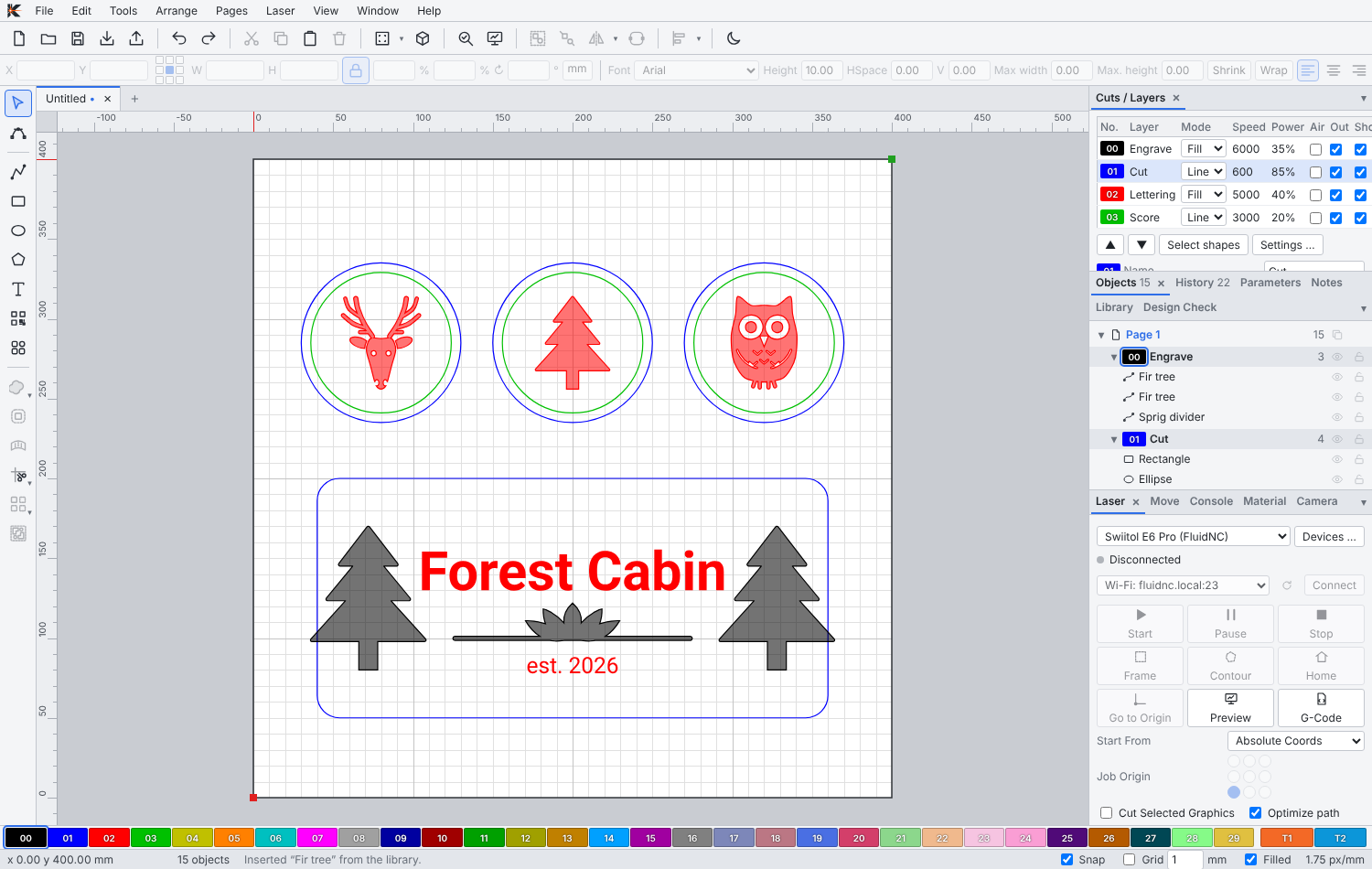
The main window at a glance
| Area | What you find there |
|---|---|
| Menu bar (top) | File, Edit, Tools, Arrange, Pages, Laser, View, Window and Help. |
| Main toolbar (below the menu) | New, open, save, import and export, undo, clipboard, zoom, 3D view, camera, device settings, design check, preview, grouping, mirroring and alignment. |
| Numeric edits toolbar | Position, size and rotation of the selection. Fields accept formulas with units, such as 100/3 or 2in. With a text selected, the text toolbar appears with font, height and spacing. |
| Tools toolbar (left) | Select and edit nodes, draw lines, curves, rectangles, ellipses, polygons and text, QR codes, the Toolbox with all generators, Boolean operations, offset, arrays, nesting and measuring. |
| Project tabs (above the workspace) | Several projects open at once, each with its own pages, selection and undo history. |
| Workspace (centre) | The laser bed of the selected device. Drag guides out of the rulers. |
| Windows (right) | Layers (Cuts), Objects and History; at the bottom right Laser, Move and Console. |
| Palette (bottom) | One colour per layer. Click a colour to put the selection on that layer. |
| Status bar (bottom) | Pointer position, snapping (“Snap”) and grid (“Grid”). |
The windows can be moved, docked, grouped as tabs and hidden. Window in the menu bar shows and hides them, and toolbars can be customized.
Colour is the layer
Every object belongs to a layer, and every layer has a colour. The layer decides how the object is lasered: mode (line or fill), speed, power, passes and more. Objects never carry their own laser settings; to laser something differently, put it on another layer.
Double-click a layer in the layers window to open its cut settings.
Selecting and moving
- Click selects an object, Shift+click adds to the selection.
- A marquee to the right selects objects that lie completely inside, a marquee to the left also selects objects it only touches.
- Click a selected object a second time to switch between scaling and rotating.
- Arrow keys move the selection by 1 mm (Shift 10 mm, Alt 0.1 mm).
- Space + drag, the middle mouse button or the mouse wheel move and zoom the view.
All shortcuts are listed under Keyboard shortcuts and in the app with F1.
Language and theme
- View → Language: English, German, Italian and more. The default follows your system.
- View → Theme, or the button at the far right of the toolbar: light or dark. The default follows your system.
Settings
Edit → Settings … gathers all application preferences in one window with a search field: general, appearance, workspace and snapping, mouse and keyboard, machines and services, extensions and fonts.